Free guide for beginners
TradingView for beginners
The complete guide: what TradingView is, how to find your way around the chart, draw lines, set up indicators and create alerts – step by step, with real screenshots.
- 18 chapters
- Real screenshots
- Cheat sheet & checklist
Chapter 01
What is TradingView?
TradingView is a charting platform that runs right in your browser. You see prices for currencies, stocks, indices, commodities and crypto, draw lines, add indicators and get an alert when price reaches a level.
Many traders use TradingView only for analysis and trade at their broker. But you can also trade straight from the chart if your broker is connected – or practise without any money using the built-in paper trading.
- In the browser, as a desktop app and as a phone app – your charts look the same everywhere because they are saved in your account.
- Indicators and drawing tools – from simple trend lines to indicators other traders have programmed.
- Pine Script – TradingView's own programming language. The Albrecht Edge indicators are built with it.
- Community – traders publish ideas and scripts you can look at and use.
Chapter 02
Create an account and pick the right plan
Without an account you can look at charts but not save anything. With a free account your lines, indicators and layouts are kept – on every device. You can sign up with your email or an existing Google or Apple account.
TradingView has a free plan (Basic) and several paid ones. They mainly differ in how many indicators fit on one chart, how many charts you can see side by side and how many alerts can be active:
| Basic (free) | Essential | Plus | Premium | |
|---|---|---|---|---|
| Charts per tab | 1 | 2 | 4 | 8 |
| Indicators per chart | 2 | 5 | 10 | 25 |
| Active price alerts | 3 | 20 | 100 | 400 |
| Historical bars | 5,000 | 10,000 | 10,000 | 20,000 |
According to TradingView, as of October 2026. Above these there is also the Ultimate plan. tradingview.com/pricing Through this partner link you get a 15 USD coupon for your next TradingView subscription.
Chapter 03
The interface at a glance
TradingView looks busy the first time you open it. In fact the screen is made of just a few areas that are always laid out the same way:

- 1Symbol search
- 2Timeframes
- 3Indicators
- 4Alert
- 5Layout name and save
- 6Price data (OHLC)
- 7Drawing toolbar
- 8Price scale
- 9Watchlist
- 10Time axis
- 11Date range shortcuts
Chapter 04
Choose a market and timeframe
The symbol sits at the top left – for example EURUSD, or XAUUSD for gold. Click it, or just start typing while the chart is active: the symbol search opens right away.

- 1Search field
- 2Filter by market
- 3Choose data source
- 4Provider (broker or exchange)
The same symbol is often offered by several data providers (for example EURUSD from OANDA, FXCM or FX). Prices differ very slightly. Ideally use the provider closest to your broker – or your broker itself if it is in the list.
Next to it you choose the timeframe: each candle then shows 1 minute, 15 minutes, 1 hour, 4 hours, 1 day and so on. The quickest way is the keyboard: type the number and press Enter.
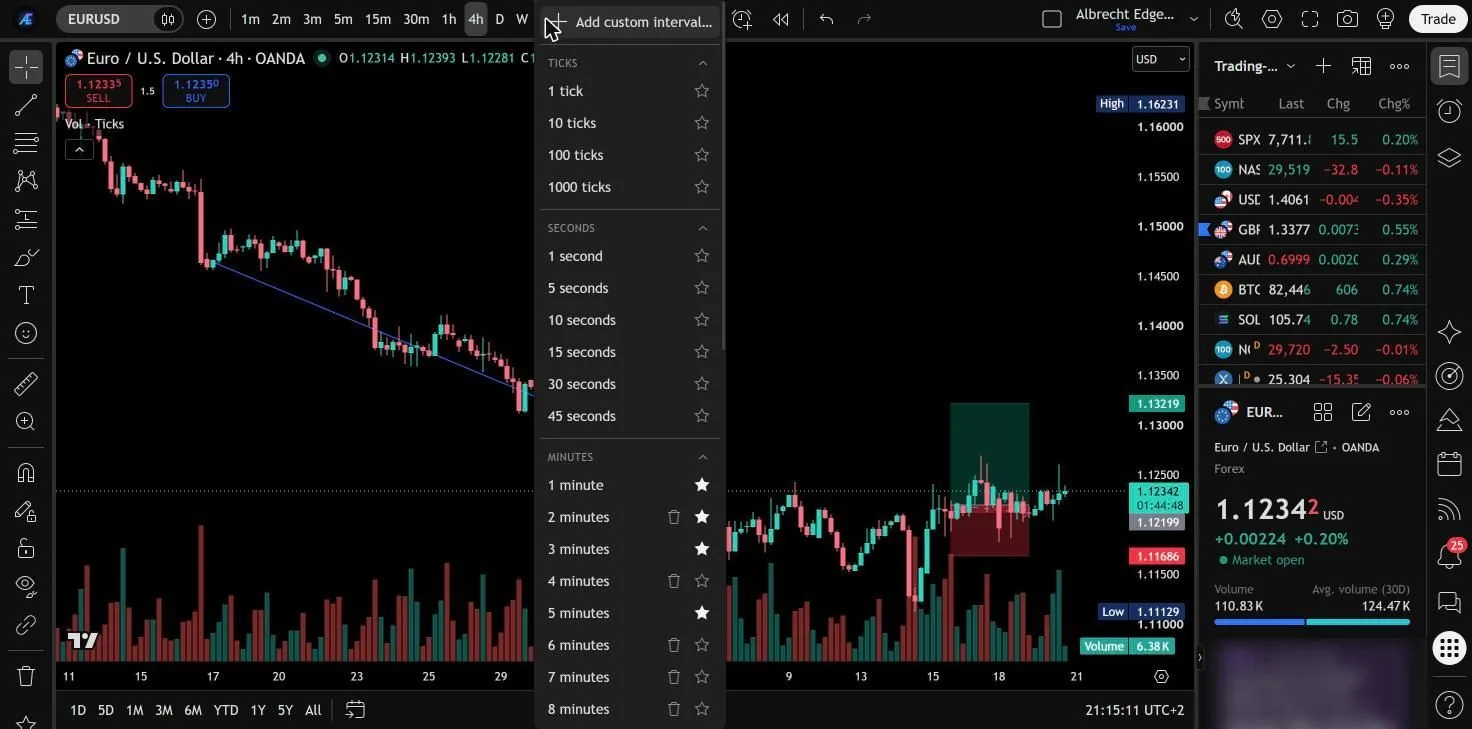
- 1Active timeframe
- 2Add a custom interval
- 3Star = favourite in the toolbar
Chapter 05
Reading candles and chart types
The default is candles (candlesticks). Each candle sums up one period and shows four prices: open, high, low and close.
- Green candle: the close is above the open – price rose during that period.
- Red candle: the close is below the open – price fell.
- Body: the part between open and close.
- Wicks: show how far price moved up and down in between.
With the candle icon in the top toolbar you can switch to other chart types such as bars, line or Heikin Ashi. Stay with candles to begin with – almost all explanations and strategies refer to them.
Chapter 06
Moving around the chart
- Scroll: drag the chart left or right with the mouse button held down.
- Zoom: turn the mouse wheel – or use two fingers on a laptop.
- Price scale: drag up or down on the price scale on the right to squeeze or stretch the chart.
- Back to start: Alt + R resets the view if you get lost.
Chapter 07
Drawing tools
The drawing toolbar runs down the left edge of the screen. Each icon holds a group – click the small arrow next to it to see all tools in that group.
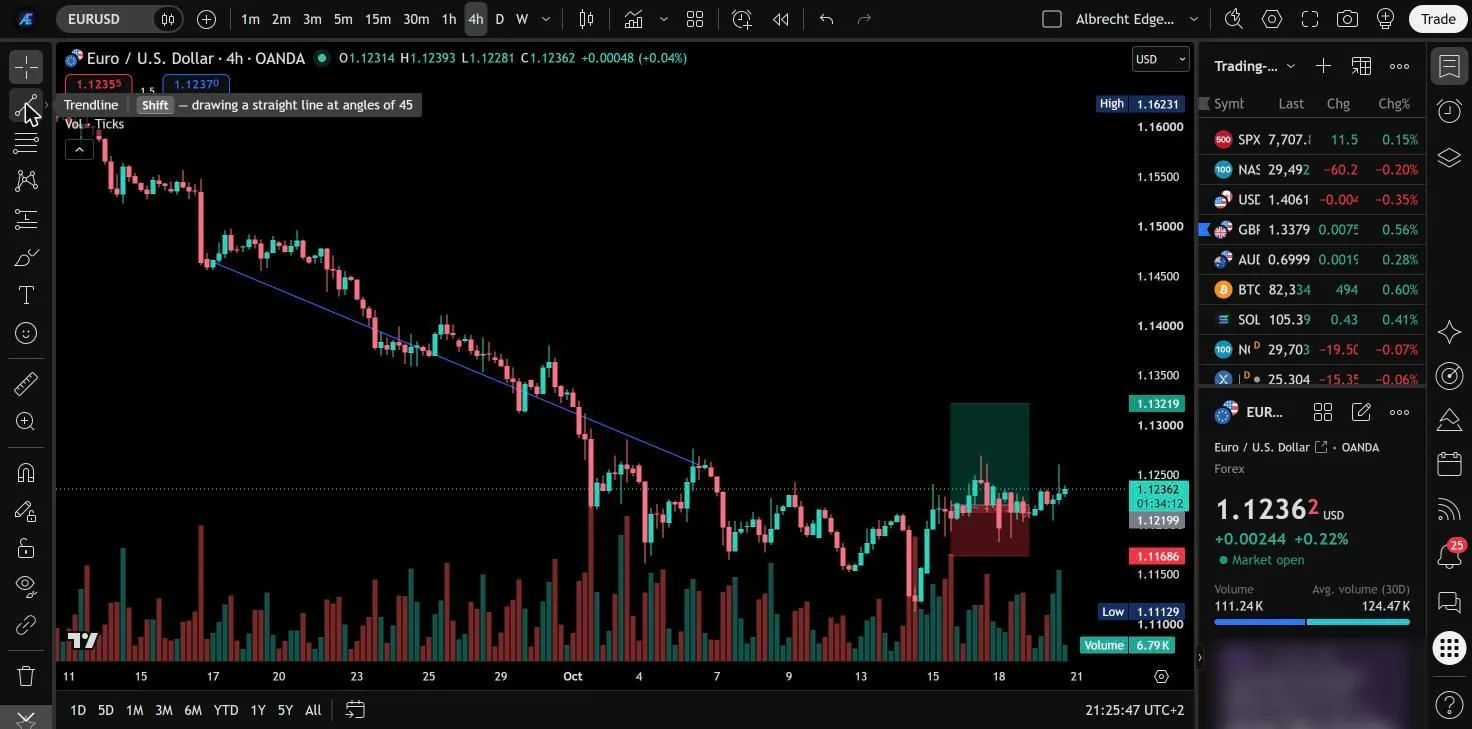
- 1Trend line
- 2Text
- 3Measure
- 4Magnet (snaps to candles)
- 5Remove drawings
- 6The drawn trend line
These four tools take you a long way at the start:
- Trend line (Alt + T): connects two highs or two lows.
- Horizontal line (Alt + H): marks an important price, such as an old high.
- Rectangle: marks a zone instead of a single line.
- Fibonacci retracement (Alt + F): shows pullback areas within a move.
Chapter 08
Risk on the chart: the long and short tool
One of the most useful tools for beginners is the Long Position and Short Position tool. You drag entry, stop loss and target straight onto the chart – TradingView shows the risk-reward ratio instantly.

- 1Long and short position
- 2Target (take profit)
- 3Entry
- 4Risk/reward ratio
- 5Stop (stop loss)
In the tool's settings you enter your account size and risk, and it works out the position size too. For lots, contracts and other account currencies use our position size calculator.
Chapter 09
Add and set up indicators
You add indicators with the “Indicators” button in the top toolbar – or faster with the / key. A search opens with several sections:
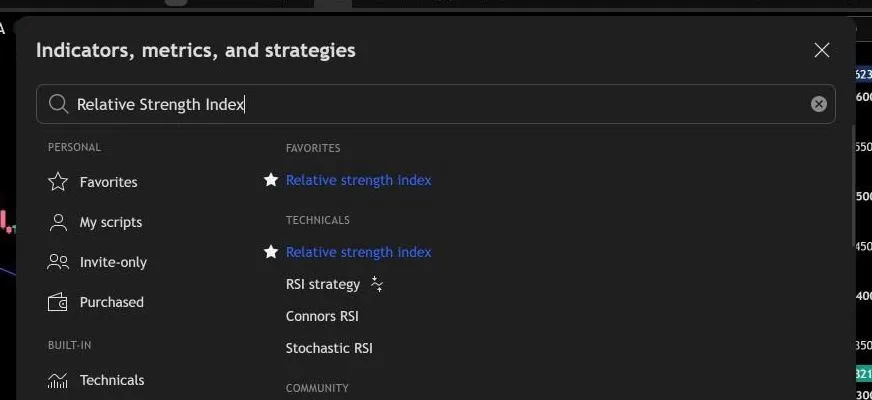
- 1Search
- 2Your favourites
- 3Built-in indicators
- 4Click to add the RSI
- Technicals: the built-in classics such as moving averages, RSI or MACD.
- Community: indicators other traders have published.
- Favorites: indicators you marked with the star – so you find them again instantly.
- Invite-only: indicators you have been given access to – more on that in the next chapter.
Hover over an indicator's name at the top left of the chart and small icons appear: eye (show and hide), cog (settings), bin (remove).

- 1Legend: hide, settings, delete
- 2Inputs, style, visibility
- 3Length (period)
- 4Defaults
- 5Apply
Chapter 10
Unlock and add invite-only indicators
Some indicators are not public but invite-only. The developer grants access to your TradingView username. That is also how the Albrecht Edge indicators work in the free trial.
- Log in to TradingView with exactly the username that was given access.
- Open a chart and click “Indicators” at the top – or press /.
- On the left, choose “Invite-only”.
- Click the indicator's name. It appears on the chart right away.

- 1The “Invite-only” section
- 2Click to add the indicator
- 3Star = favourite
The star in front of the name also adds the indicator to your Favorites. Next time it is just one click away.
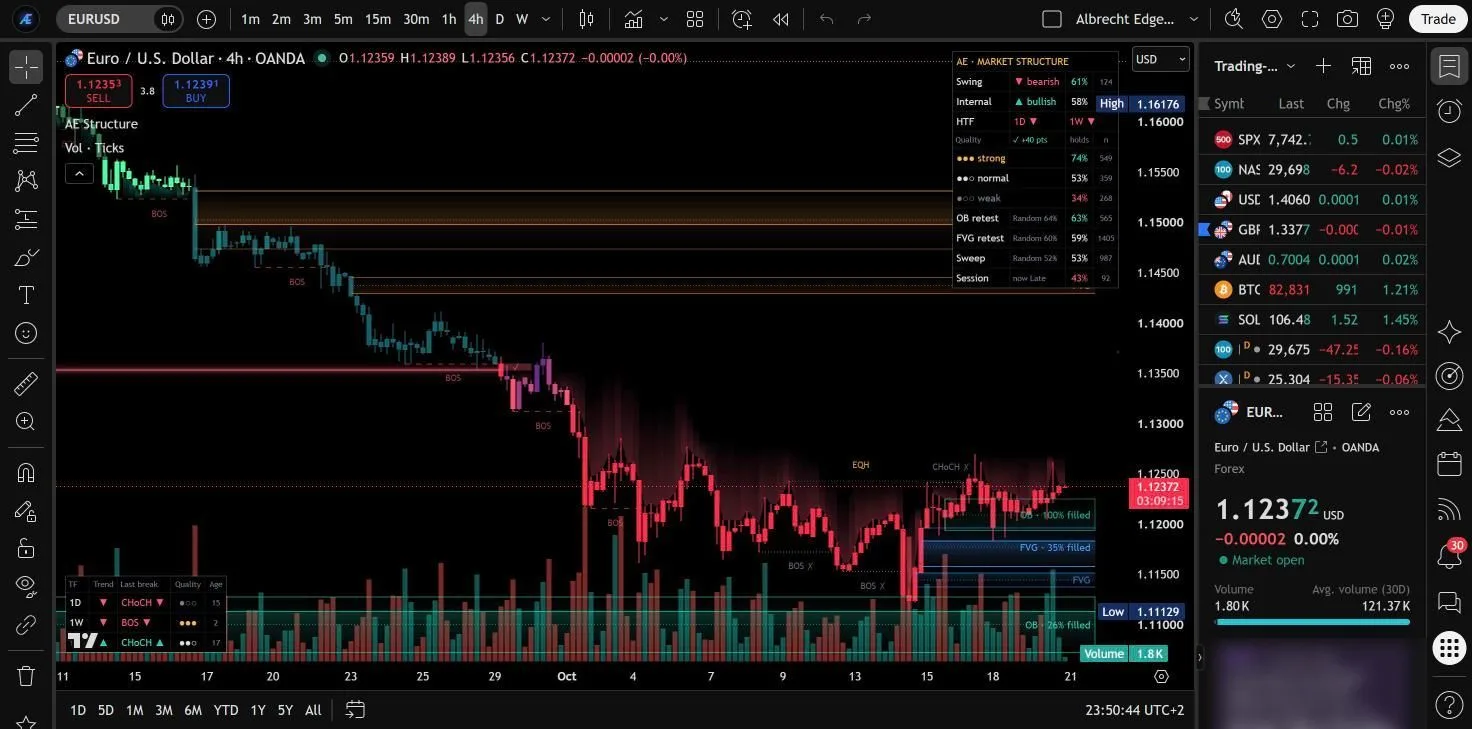
- 1Indicator name
- 2Open indicators
- 3Indicator info panel
Chapter 11
Alerts: no need to sit in front of the chart
An alert tells you when something happens – for example when price reaches a line. So you don't have to stare at the chart for hours.
- Click the alarm clock in the top toolbar or press Alt + A.
- Choose the condition, for example “price crossing 1.0850” – or a line you have drawn.
- Choose how you want to be notified: pop-up, sound, email or push notification to your phone.
- Save – done.
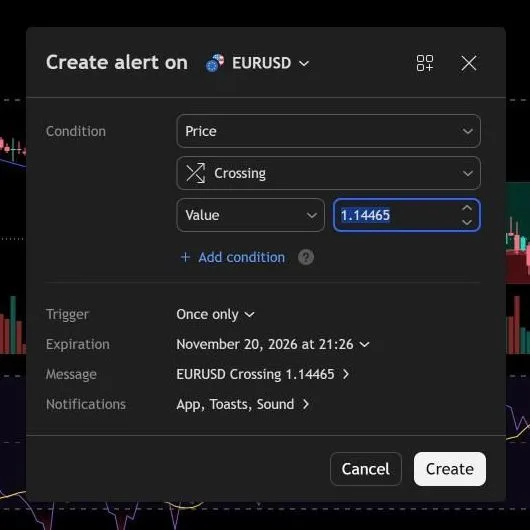
- 1Condition
- 2Price
- 3How often to trigger
- 4Expiry
- 5Notifications
- 6Create alert
Chapter 12
Layouts, watchlist and saving
Everything you set up on the chart – symbol, timeframe, lines, indicators – belongs to a layout. You can create several layouts, for example one for forex and one for gold, and switch between them at the top right.
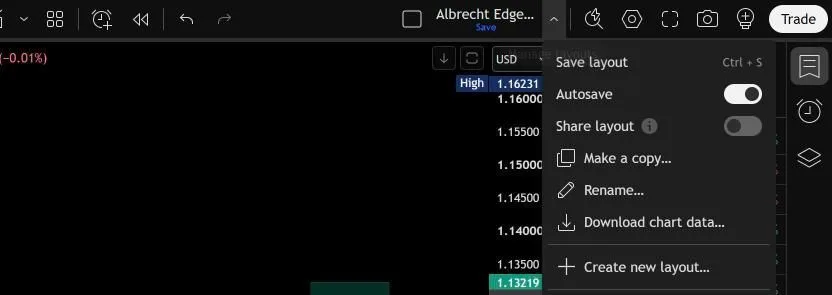
- 1Current layout
- 2Save (Ctrl+S)
- 3Autosave
- 4Rename
- 5New layout
On the right you find the watchlist: your list of markets you look at regularly. Click an entry to open it on the chart. The space bar jumps through the list one by one.
Chapter 13
Practise without risk: Bar Replay and paper trading
Before real money is involved, you can practise in TradingView in two ways:
- Bar Replay: rewind the chart into the past and let it play candle by candle – like live, except you don't know the future. Ideal for testing a setup.
- Paper trading: a practice account with play money. You trade right from the chart without risking real money.
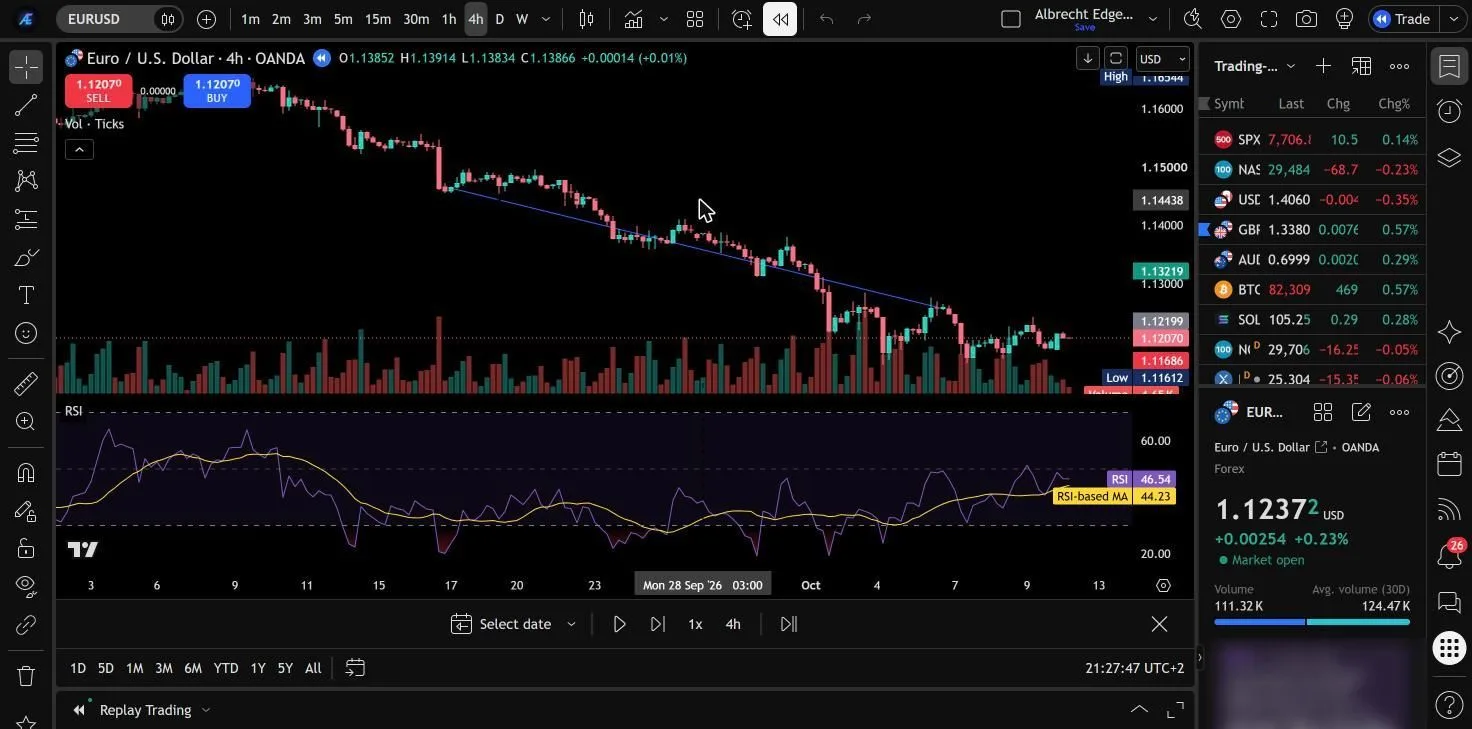
- 1Start Bar Replay
- 2Choose start point
- 3Play or step bar by bar
- 4Exit replay
- 5Trade in replay
Our guide to backtesting with Bar Replay shows you how to test a setup step by step. Best keep track of your trades in a trading journal.
Chapter 14
TradingView on your phone
The TradingView app is available for iPhone and Android. With the same account you see your watchlist and your layouts with all lines and indicators – and you get your alerts as push notifications.
- The big screen is better for analysis. The phone is ideal for checking alerts and taking a quick look at the chart on the go.
- Drawing works on the phone too: hold your finger on the chart to bring up the crosshair for precise points.
Chapter 15
Cheat sheet: the most useful shortcuts
These shortcuts make you a lot faster. On a Mac use ⌥ Option instead of Alt.
- Alt+TTrend line
- Alt+HHorizontal line
- Alt+VVertical line
- Alt+FFibonacci retracement
- Alt+AAdd alert
- Alt+RReset chart view
- Alt+LLog scale
- Alt+IInvert chart
- /Open indicators
- TypeOpen symbol search
- Number+EnterChange timeframe
- SpaceNext symbol in the watchlist
- Ctrl+ZUndo
- DelDelete the selected drawing
Cheat sheet as a PDF
One page to print: all shortcuts for Windows and Mac, the checklist and where to find what.
Chapter 16
The 7 most common beginner mistakes
- Too many indicators. Three indicators that measure the same thing say no more than one. Keep the chart clean.
- Only one timeframe. If you only watch the 5-minute chart, you miss the direction on the daily.
- Lines everywhere. Every line should have a reason. Delete old, unimportant lines.
- The wrong symbol. Make sure you look at the same market you trade at your broker.
- No stop loss on the chart. The long/short tool shows you what you risk before the trade.
- Layout not saved. Switch on autosave.
- Trading live without practice. Practise with Bar Replay and paper trading first, then start with small risk.
Chapter 17
Test yourself: find the button
Eight quick questions with real screenshots. Each time, tap the spot you would click in TradingView.
Chapter 18
Checklist: your starting setup
Tick off what you have done. Your progress is saved in this browser.
As of October 2026. TradingView changes plans and the interface from time to time – the basics stay the same.
Albrecht Edge is an independent indicator provider and is not affiliated with TradingView. TradingView is a trademark of TradingView, Inc. Screenshots: TradingView.